Guide
How to Embed a Quiz on Your Website (Step by Step)
A link you share works. But a quiz embedded directly on your website is more powerful — visitors stay on your site, the quiz feels native to the page, and you control the context around it. Here is exactly how to embed a FluoTest quiz in two minutes.
Why embed instead of just sharing a link
When you share a direct link, visitors leave your website to take the quiz on a separate page. Some come back. Many do not. An embedded quiz keeps people on your site the whole time. They complete the quiz, see their result, and all of this happens within your brand environment.
Embedding also improves conversion. The quiz feels like part of your site rather than a redirect. There is no moment of hesitation when a new tab opens. And because visitors stay on your domain, your analytics are cleaner — session data stays intact instead of being split across two URLs.
How to get your embed code in FluoTest
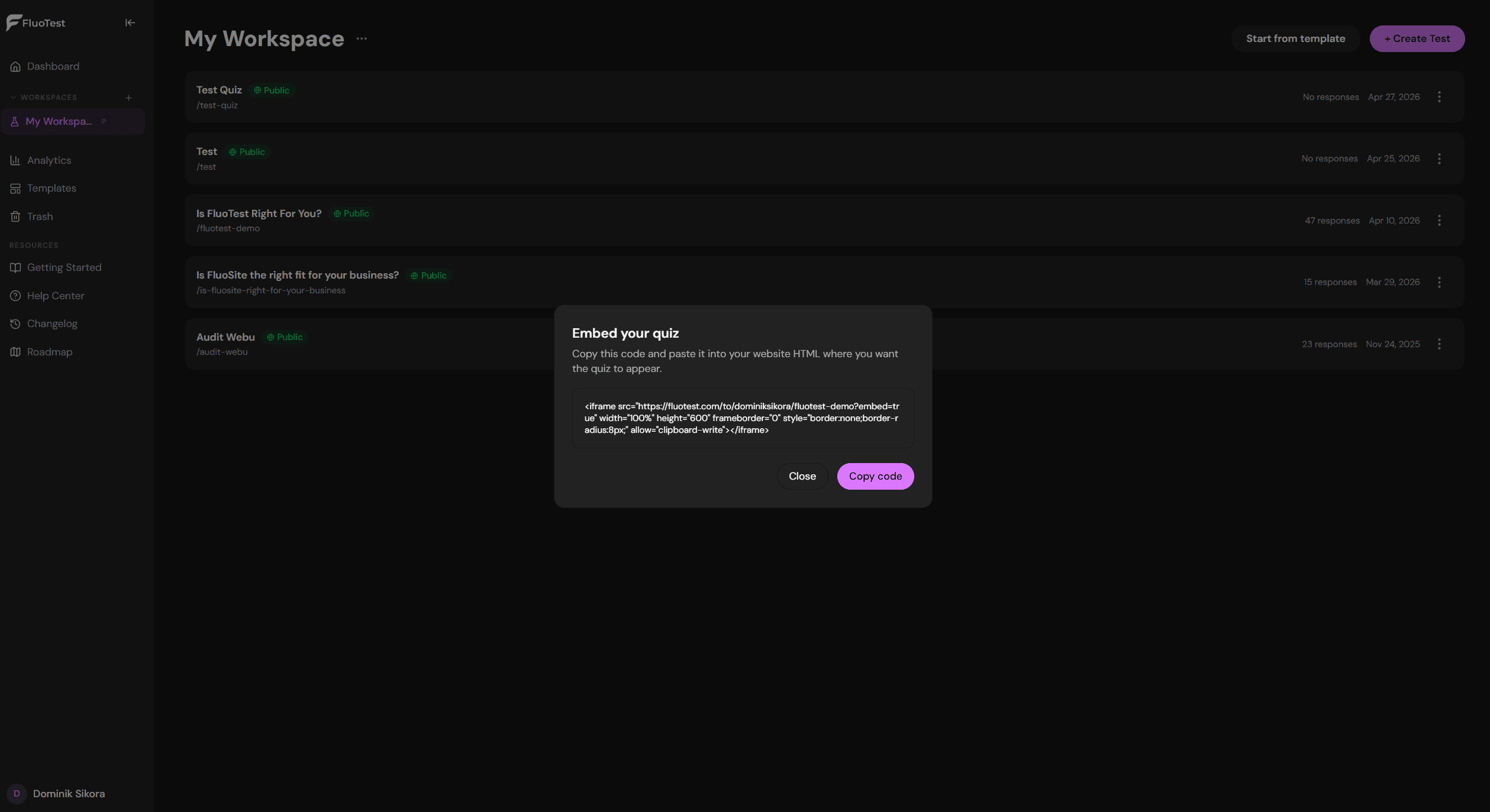
Open your dashboard and find the quiz you want to embed. Click the three-dot menu on the quiz card and select "Copy embed code." A popup appears showing the iframe code — you can read through it and then copy it with one click.
The code looks like this:
<iframe src="https://fluotest.com/to/yourname/your-quiz?embed=true" width="100%" height="600" frameborder="0" style="border:none;border-radius:8px;" allow="clipboard-write"></iframe>The embed=true parameter tells FluoTest to render the quiz in a minimal layout without the header and footer, so it fits cleanly into your page.
Where to place the quiz on your website
Contact page: replace your contact form with the quiz. Anyone who wants to reach you goes through the quiz first. You get qualified context before they can book a call or send a message.
Services page: embed the quiz at the bottom of your services page. Visitors who read what you offer can immediately check if they are a good fit. The quiz turns a passive reader into an active lead.
Homepage: place the quiz in a dedicated section with a headline like "Find out if we are the right fit" or "Take the 2-minute quiz." Works well as an alternative to a generic contact button.
Dedicated landing page: create a page specifically for the quiz — useful for ad traffic, email campaigns, or any scenario where you want a focused experience with no navigation distractions.
Linktree or link-in-bio: if embedding is not an option, link directly to the quiz from your bio link. This works on Instagram, TikTok, and anywhere you have one link slot.
How it works for visitors
Visitors see the quiz inline — no popups, no redirects, no extra tabs. They answer the questions, submit, and see their score and result immediately on the same page.
Depending on how you have set up your score tiers, the result might show a calendar booking link, an email collection form, or a redirect to a resource. All of this happens within the iframe, still on your website.
The quiz is fully mobile-responsive. It adjusts to any screen width. You do not need to do anything extra for mobile visitors.
Tips for higher completion rates
Keep the quiz visible without scrolling: place it high enough on the page that visitors see it without having to scroll past a wall of text first. If they have to hunt for it, many will not bother.
Write a compelling headline above the embed: "Are you ready to work together?" or "Find out if this is right for you" works better than just dropping the quiz in with no context.
Keep the quiz short: 5 to 8 questions is the sweet spot. Anything over 10 questions sees significantly higher drop-off rates. Each question should have a clear purpose.
Set the height correctly: the default height of 600px works for most quizzes. If your quiz has more questions, increase the height in the iframe code to avoid internal scrollbars. Change height="600" to height="800" or whatever fits.
What to do with the results
Every time someone completes your quiz you get an email with their full answers and score. You can see exactly who took it, what they answered, and how they scored — before you respond or schedule a call.
If you use Brevo, you can connect FluoTest to your email list and trigger automated follow-up sequences based on score. High scorers get one email, low scorers get another.
You can also use the Zapier webhook integration to push quiz results to your CRM, Google Sheets, or any other tool. The quiz becomes a structured intake form that feeds your existing workflow automatically.
Frequently asked questions
Does embedding work on any website builder?
Yes. The embed code is a standard HTML iframe. It works on Webflow, Framer, Squarespace, WordPress, Wix, Notion, and any platform that lets you add custom HTML. If your platform has an HTML block or embed widget, paste the code there.
Can I embed the same quiz on multiple pages?
Yes. Use the same embed code on as many pages as you like. Each submission is tracked separately regardless of which page it came from.
What if I want the quiz to open in a popup instead of inline?
The embed code creates an inline iframe by default. If you want a popup trigger, you can wrap the iframe in a modal using your website builder's built-in popup feature, or use any HTML/CSS modal and paste the iframe code inside it.
Does embedding affect my website's SEO?
No. The quiz content loads inside an iframe and is not indexed as part of your page. Your page's own content and meta tags determine how it ranks. The quiz itself has its own indexed URL on fluotest.com.
Ready to embed your first quiz?
FluoTest is free forever — no credit card required, no response limits.