Sign in with a passkey
Passkeys let you sign in to FluoTest using your device's fingerprint, face recognition, or screen lock — no password to type or remember. They're tied to your device and can't be phished or reused on another site.
- 1
Log in to your FluoTest dashboard and go to Settings.
- 2
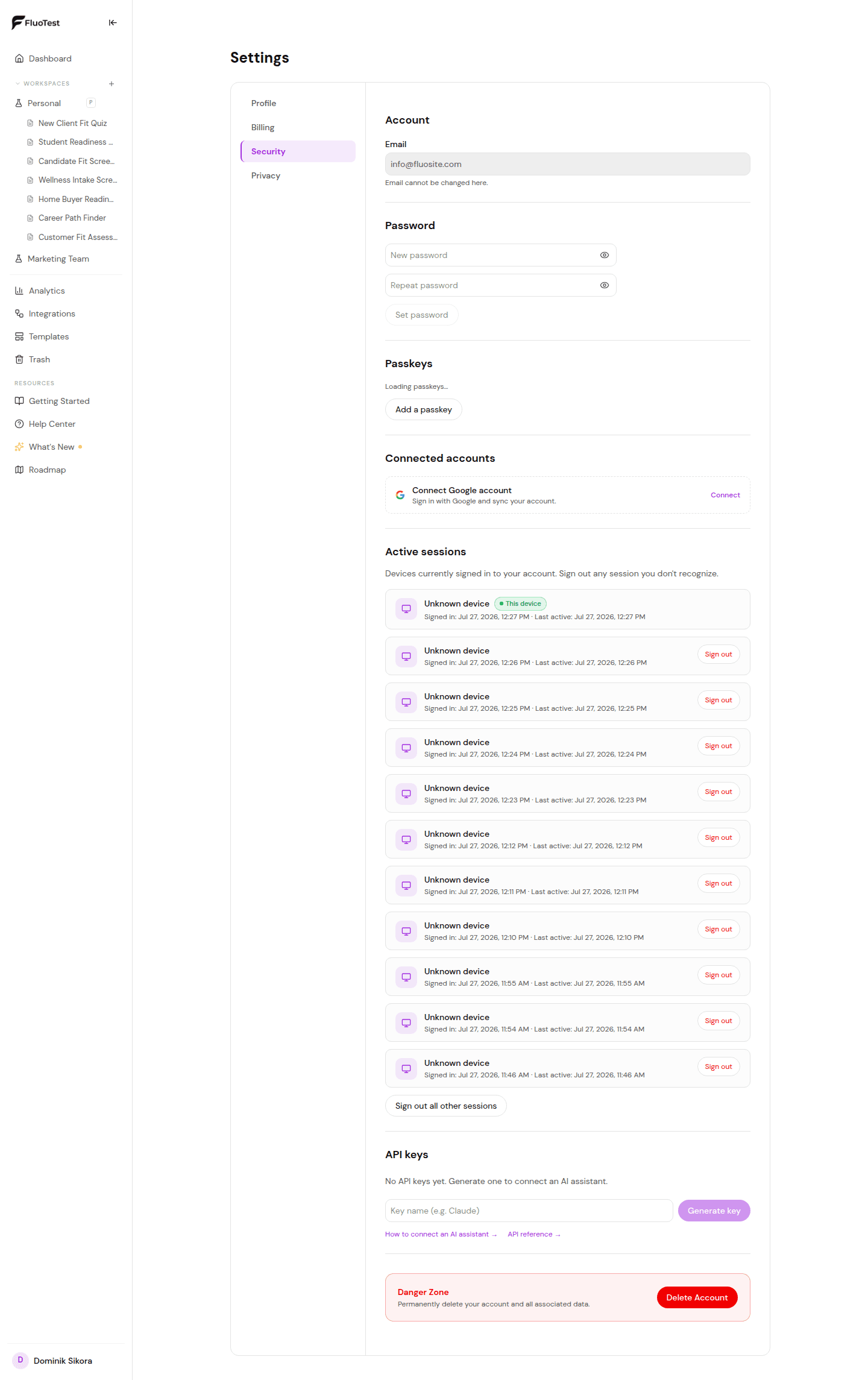
Open the Security tab and find the "Passkeys" section.
- 3
Click "Add a passkey" and follow your browser or device prompt (fingerprint, face, or screen lock).
- 4
Your passkey now appears in the list. You can add passkeys for multiple devices, or remove one at any time.
- 5
On your next sign-in, click "Sign in with a passkey" on the login page instead of entering your email and password.
Was this helpful?