Browse and filter all your submissions
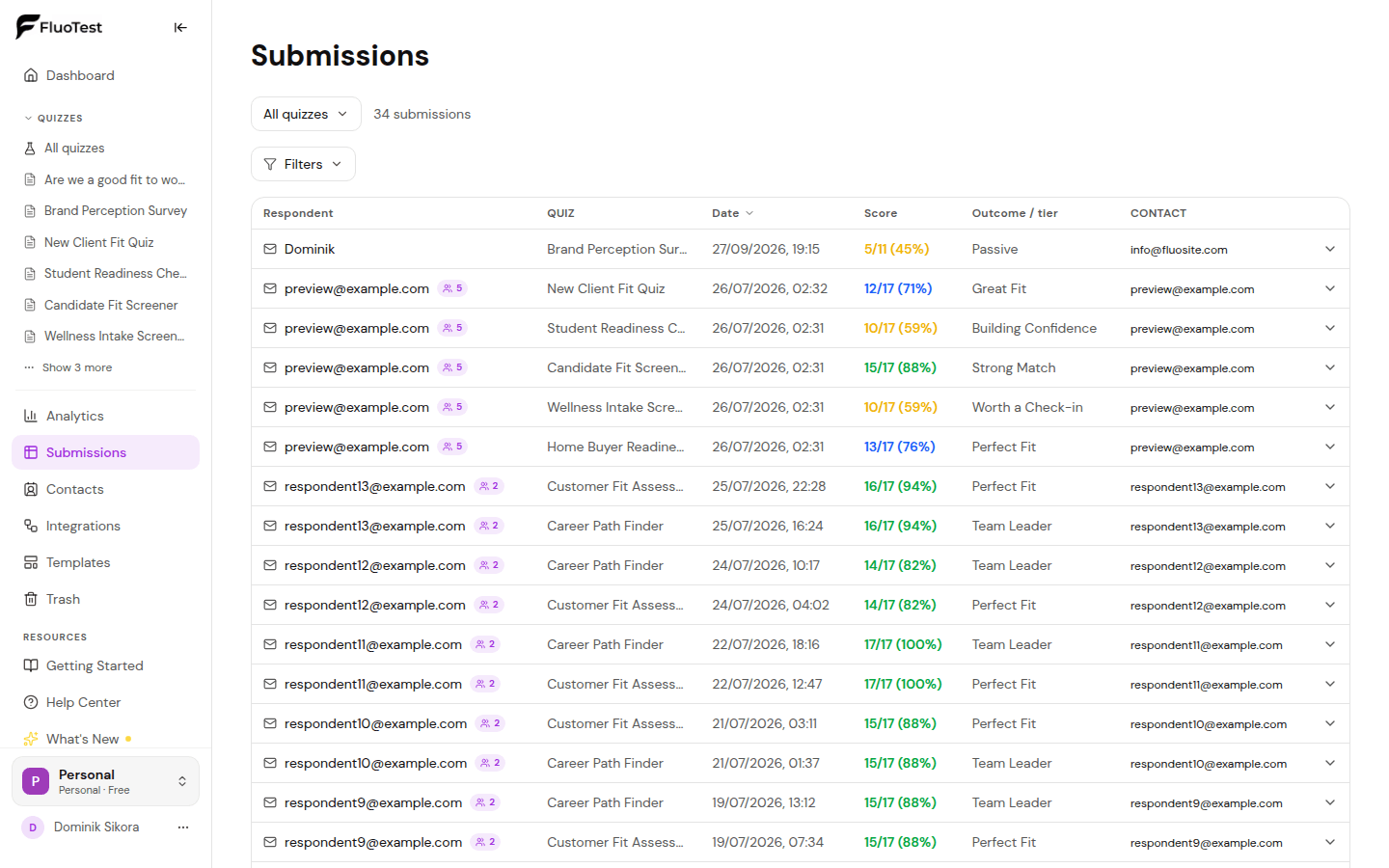
The Submissions page puts every completed submission in your current workspace into one table, so you can find your best leads, check a single quiz, or spot people who took your quizzes more than once. It's available on every plan.
- 1
Click "Submissions" in the dashboard sidebar. It shows the submissions of the workspace you're in; switch workspace to see another workspace's submissions.
- 2
You start on "All quizzes". Pick a quiz from the selector at the top to see only its submissions. The count next to it shows how many submissions match.
- 3
Click a column header (Respondent, Date, Score or Outcome / tier) to sort by it. Click it again to reverse the order.
- 4
Click "Filters" to narrow the list by date range (From and To), minimum and maximum score %, outcome or tier, and whether contact info was collected. "Clear filters" resets them all.
- 5
Click a row to expand it and see that submission's full answer breakdown.
- 6
Someone who submitted more than once with the same email gets a small badge with the number of submissions. Expand their row to see their submission history.
- 7
Disqualified submissions say "Disqualified" in the score column, and submissions without contact info show as "Anonymous".
- 8
On Business, with lead routing set up, a "Leads" filter also appears: show only leads assigned to you, or only hot leads. Hot leads have a flame next to their name.
- 9
For charts and trends over time, use Analytics. To tag, note and follow up with people, use Contacts.
Was this helpful?