Choose which emails you get from FluoTest
Besides account and billing emails, FluoTest can send you three kinds of email: an alert each time someone completes your quiz, product updates, and short getting-started tips while you set up a quiz. You decide which ones you get, either in your dashboard or from the link at the bottom of our emails, which works without logging in.
- 1
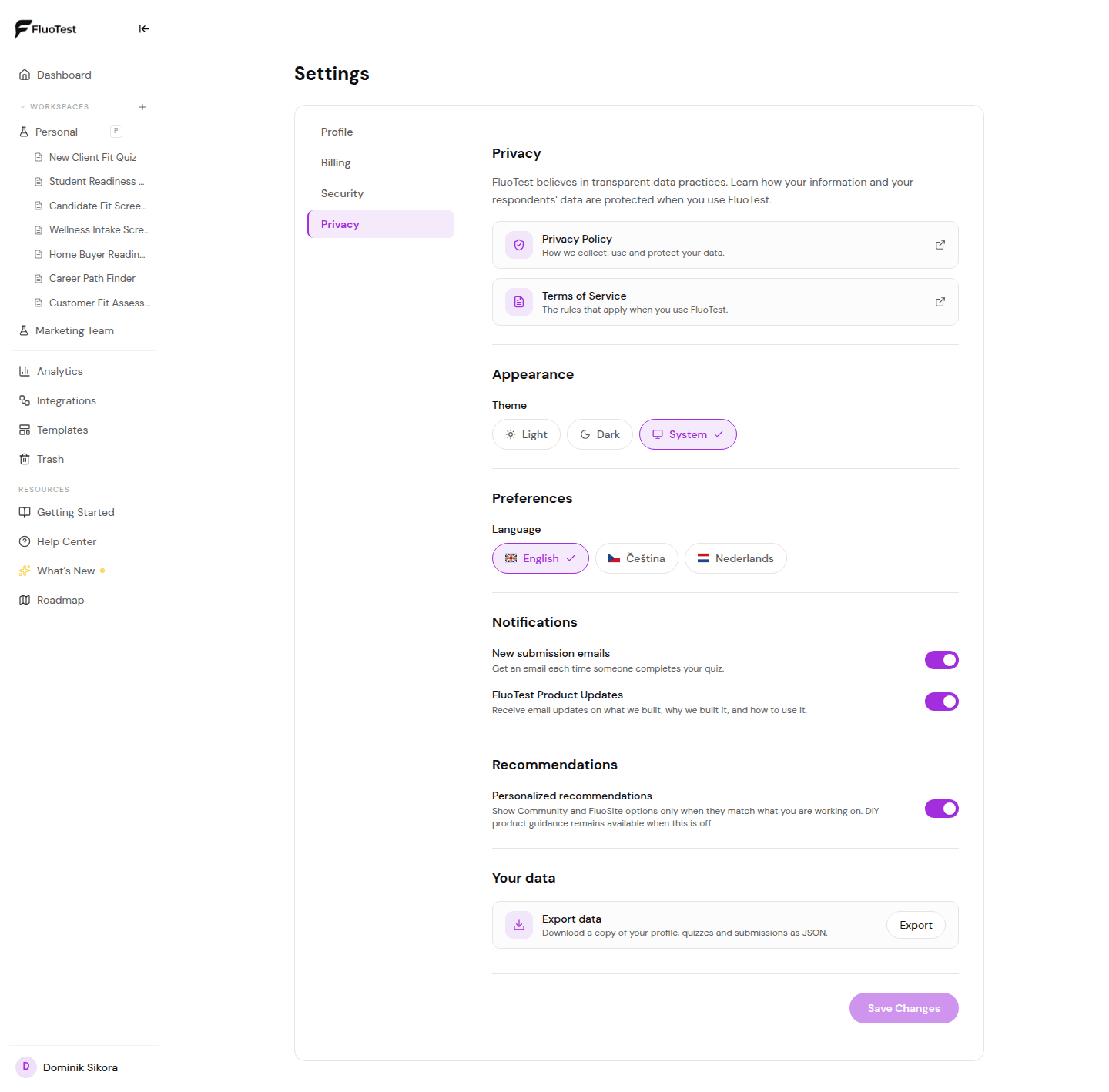
Log in to your dashboard, open Settings and go to the Privacy tab.
- 2
Under "Notifications", turn "New submission emails" on or off to choose whether you get an email each time someone completes one of your quizzes.
- 3
Turn "FluoTest Product Updates" on or off, then save your changes. New accounts start with product updates on, and you can switch them off at any time.
- 4
Every product update and getting-started tip has a link at the bottom that opens your email preferences page. The link is personal to you, so you don't need to log in.
- 5
On that page, switch "Product updates" and "Getting-started tips" on or off. Changes save right away. To stop both at once, click "Unsubscribe from all".
- 6
Unsubscribing from your email app (for example the "Unsubscribe" link Gmail shows next to the sender) works too: FluoTest picks it up and turns product updates off in your settings.
- 7
Emails about your account, billing and security keep coming whatever you choose here, because they're needed to run your account.
Was this helpful?