Privacy note and cookie consent on your quiz
When respondents leave their details, your quiz shows a short privacy note saying their details go to you. You can link that note to your own privacy policy. If you measure your quiz with Meta Pixel or Google Tag Manager, FluoTest can also ask visitors for cookie consent before those tags load.
- 1
Open the quiz, go to the "Experience" tab, then "Advanced", and open "Advanced Texts".
- 2
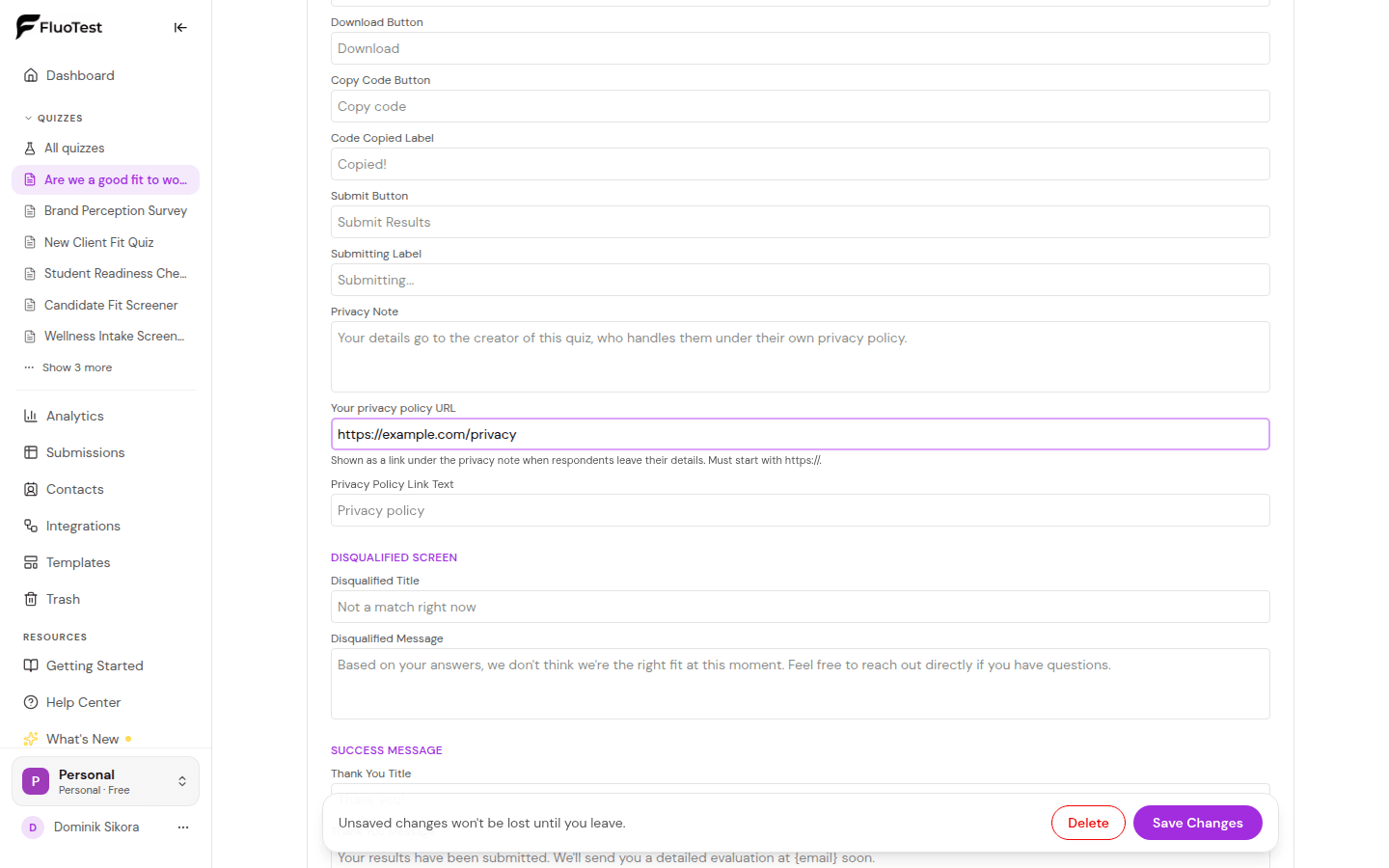
In the "Email Form" group, find "Privacy Note". Edit the wording if you like, and paste the address of your privacy policy into "Your privacy policy URL". It must start with https://.
- 3
Save your changes. A "Privacy policy" link now appears under the note whenever respondents leave their details. Change the link's wording with "Privacy Policy Link Text".
- 4
The cookie banner only matters if the quiz uses Meta Pixel or Google Tag Manager. Without either of them, no banner is needed and none is shown.
- 5
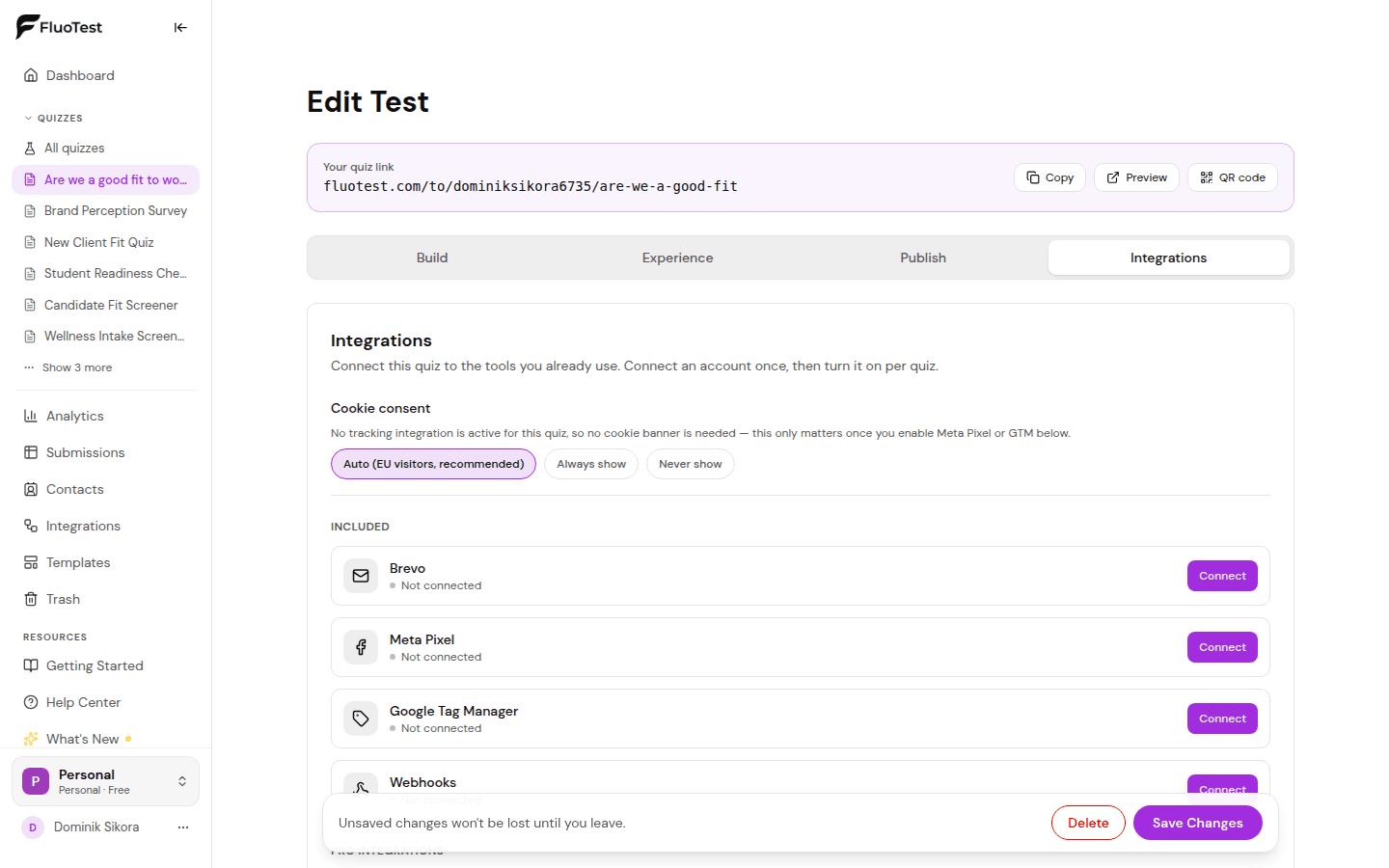
Go to the "Integrations" tab and choose a "Cookie consent" option. "Auto (EU visitors, recommended)" shows the banner to visitors from the EU/EEA, the UK and Switzerland. "Always show" shows it to everyone. "Never show" turns it off, in which case getting consent where it's required is up to you.
- 6
While the banner is shown, Meta Pixel and Google Tag Manager don't load until the visitor clicks "Accept". If they click "Decline", the tags stay off.
- 7
After choosing, visitors see a small "Cookie settings" link in the corner of the quiz so they can change their mind at any time. Withdrawing consent reloads the quiz with the tags switched off.
- 8
To change the banner's wording, edit the "Cookie Consent" group under Experience → Advanced → Advanced Texts.
Was this helpful?