Customize the results email
The email respondents get after finishing your quiz is fully yours to write, not a fixed template. Personalize it with the respondent's name, score, or any answer, format it with markdown, and optionally attach a PDF summary.
- 1
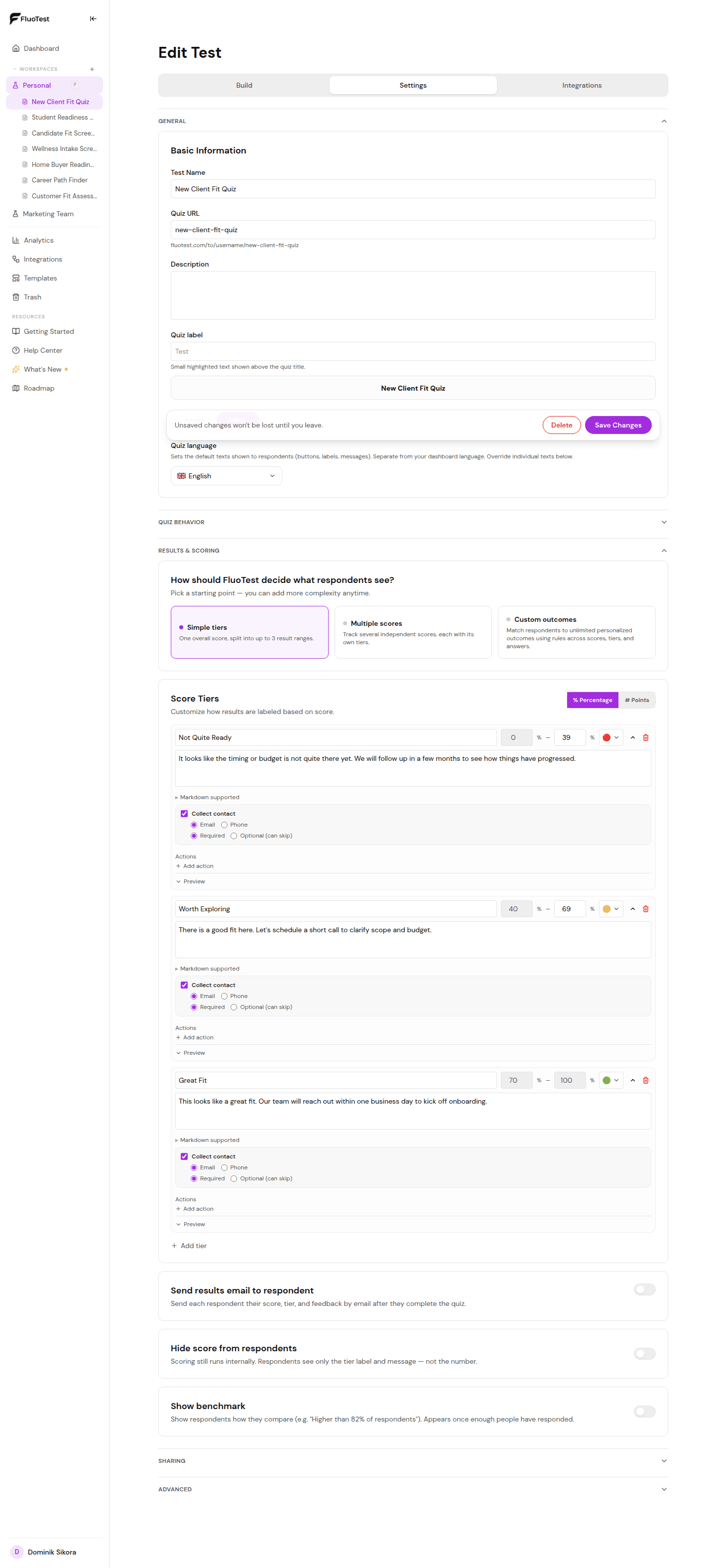
In Settings → Results & scoring, turn on Send results email to respondent.
- 2
Edit the Subject and Message fields to write your own email, in your own words.
- 3
Type @ anywhere in either field to insert a dynamic value, like @respondent.name, @score.total, or the answer to a specific question. Keep typing after the @ to search, for example @sc narrows the list to score-related fields.
- 4
Not every respondent shares their name. Set the Fallback name field to whatever @respondent.name should show instead — it defaults to "there", so "Hi @respondent.name," still reads naturally as "Hi there," rather than leaving the greeting blank.
- 5
Use markdown for formatting: **bold**, *italic*, and [links](url) all work in the message.
- 6
Add @results anywhere in your message to include a link to the respondent's personal results page. Leave it out and no link is added, so the email stays exactly what you wrote.
- 7
Turn on Attach PDF of questions and answers to include a printable, branded PDF with the respondent's score, matched tier or outcome, and every question and answer as an email attachment.
- 8
With PDF attachment on, turn on Also send me a copy to get the same PDF emailed to your own account address every time a respondent gets theirs.
- 9
Check the live preview at the bottom of the editor — it shows exactly how the email will look with sample data before you save.
- 10
If a respondent replies to this email, it goes straight to your own account email, not FluoTest — Reply-To is set automatically, on every account, free or Pro.
Was this helpful?