Understanding your quiz analytics
The analytics dashboard shows you how your quiz is performing — who is viewing it, who is completing it, and how well it is converting.
- 1
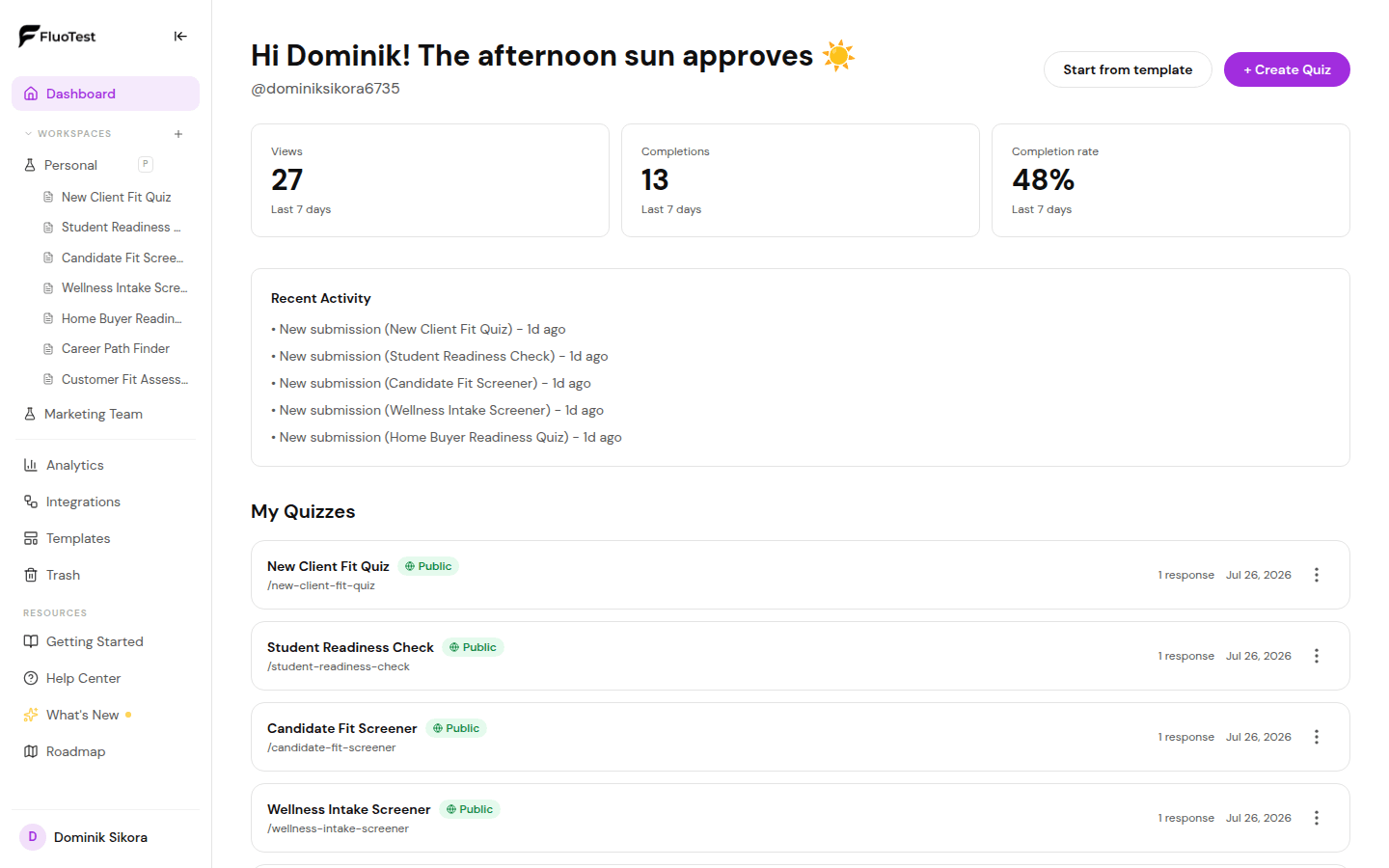
From your dashboard, click the "Analytics" button on the quiz you want to review.
- 2
You will see three key metrics at the top: Views (how many people visited your quiz), Completions (how many finished it), and Conversion rate (completions divided by views).
- 3
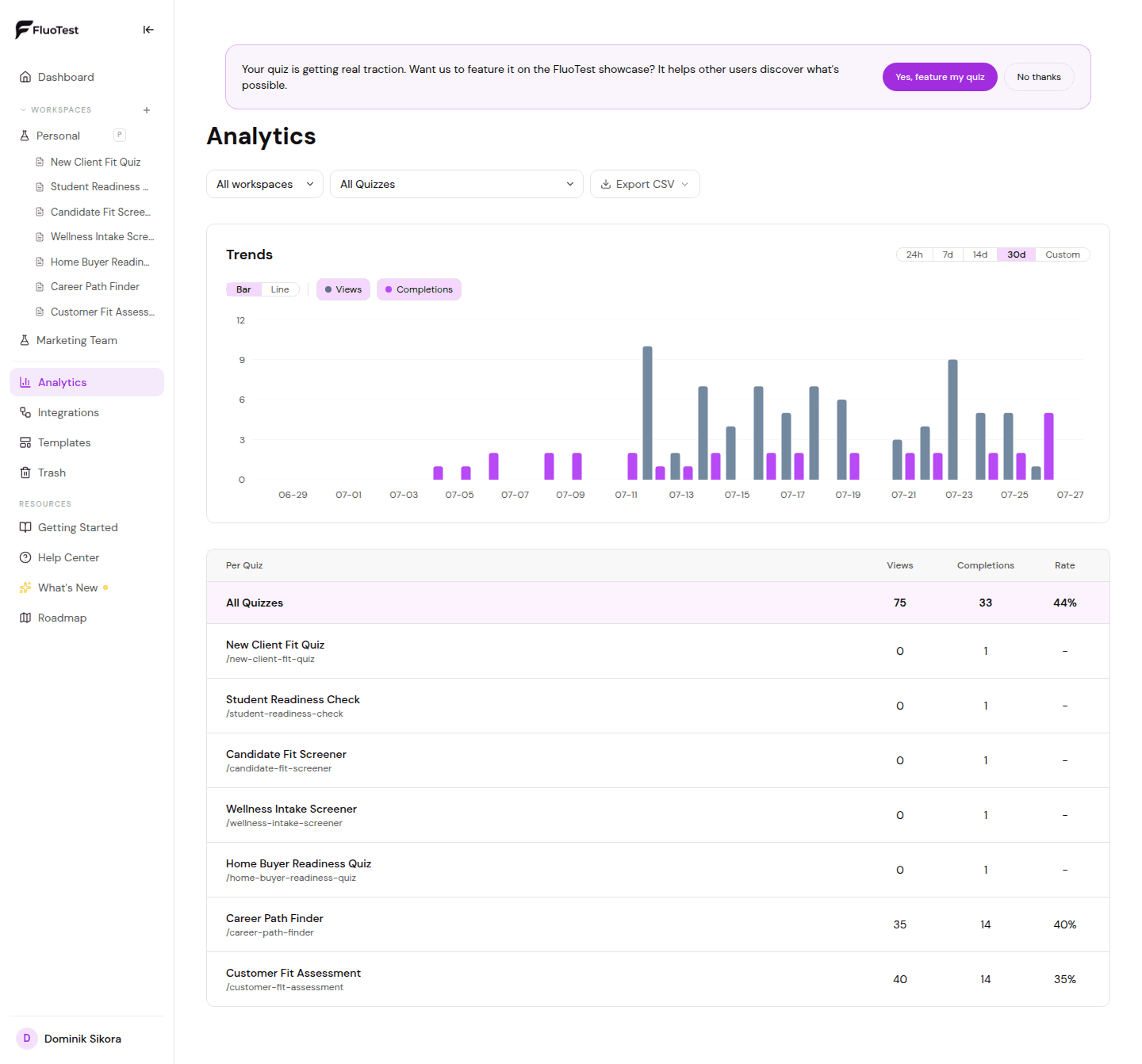
The chart shows views and completions over time. Use this to spot trends or spikes after sharing campaigns.
- 4
Below the chart you will see individual submission records — each respondent's score and when they submitted.
- 5
Use the quiz selector at the top to switch between different quizzes.
- 6
If your completion rate is low, consider shortening the quiz or improving the intro copy to set better expectations.
- 7
Numbers on the dashboard and in Analytics are read live on Pro workspaces. Free workspaces refresh them every 5 minutes, and the small label above the numbers shows when they were last updated, so a response that just came in can take up to 5 minutes to appear.
NPS / eNPS score
When a quiz asks how likely someone is to recommend you on a 0-10 scale, Analytics shows the Net Promoter Score for that question. It works the same for customer NPS and employee eNPS. Available on Pro.
- Pick the quiz in the quiz selector at the top. Each NPS question gets its own card with the score, the number and share of promoters, passives and detractors, and how many people answered.
- The score is the percentage of promoters (9-10) minus the percentage of detractors (0-6), from -100 to +100. Passives (7-8) count toward the total but not toward either side.
- A question counts as NPS automatically when it is a 0-10 slider whose text asks about recommending, or a multiple-choice question whose answers are bands such as 0-6, 7-8 and 9-10.
- To override the automatic choice, open the question in the editor and use the "Treat as NPS / eNPS" switch. Turn it on for any slider or band question, or off for a 0-10 question that is not NPS.
- The score counts all responses to the selected quiz, not just the ones in the date range above the chart.
- The same numbers are available to AI assistants through the MCP get_results tool.
Was this helpful?