Drop-off analytics per question
Drop-off analytics show you exactly which section respondents abandon your quiz at — so you can identify and fix weak points.
- 1
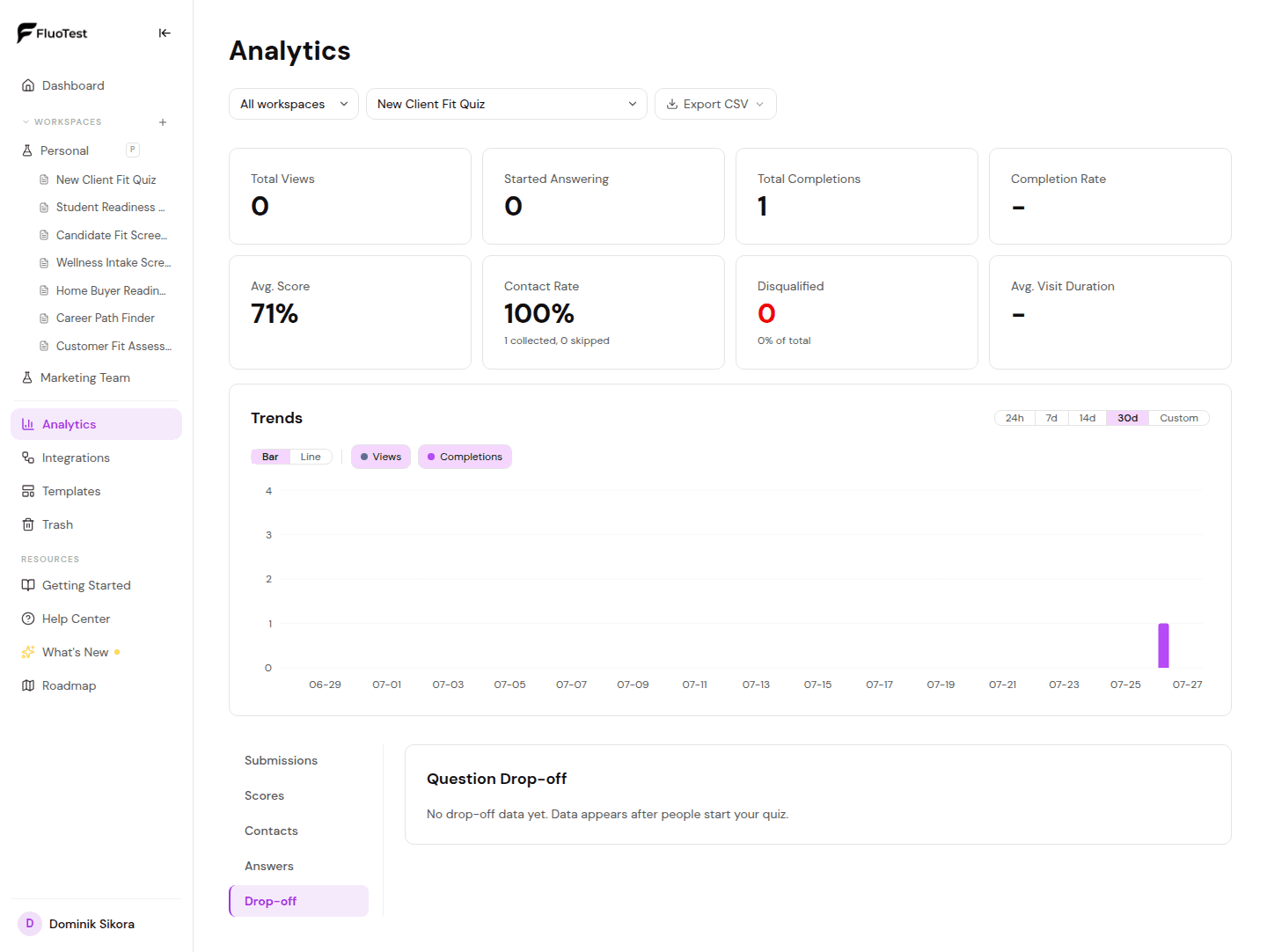
From your analytics dashboard, select a specific quiz using the quiz selector at the top.
- 2
Scroll down to the "Drop-off" section.
- 3
Each bar represents a section. The height of the bar shows how many sessions were abandoned at that section.
- 4
A high bar on section 1 usually means your intro or first questions are too long, too personal, or unclear.
- 5
A high bar on a later section often means fatigue — consider cutting questions from that section.
- 6
Drop-off data updates as new sessions come in. Sessions are counted as dropped if they start but never submit.
- 7
For a full picture, switch to the "Funnel" tab to see the same data as a single funnel — from first view down to completion, question by question.
Was this helpful?