Connect Brevo
Connect FluoTest to Brevo to automatically add quiz respondents to your email list.
- 1
Log in to your Brevo account and go to Settings → API Keys.
- 2
Create a new API key and copy it.
📸 Brevo API key settings page - 3
In FluoTest, go to your quiz builder and open the "Integrations" tab.
- 4
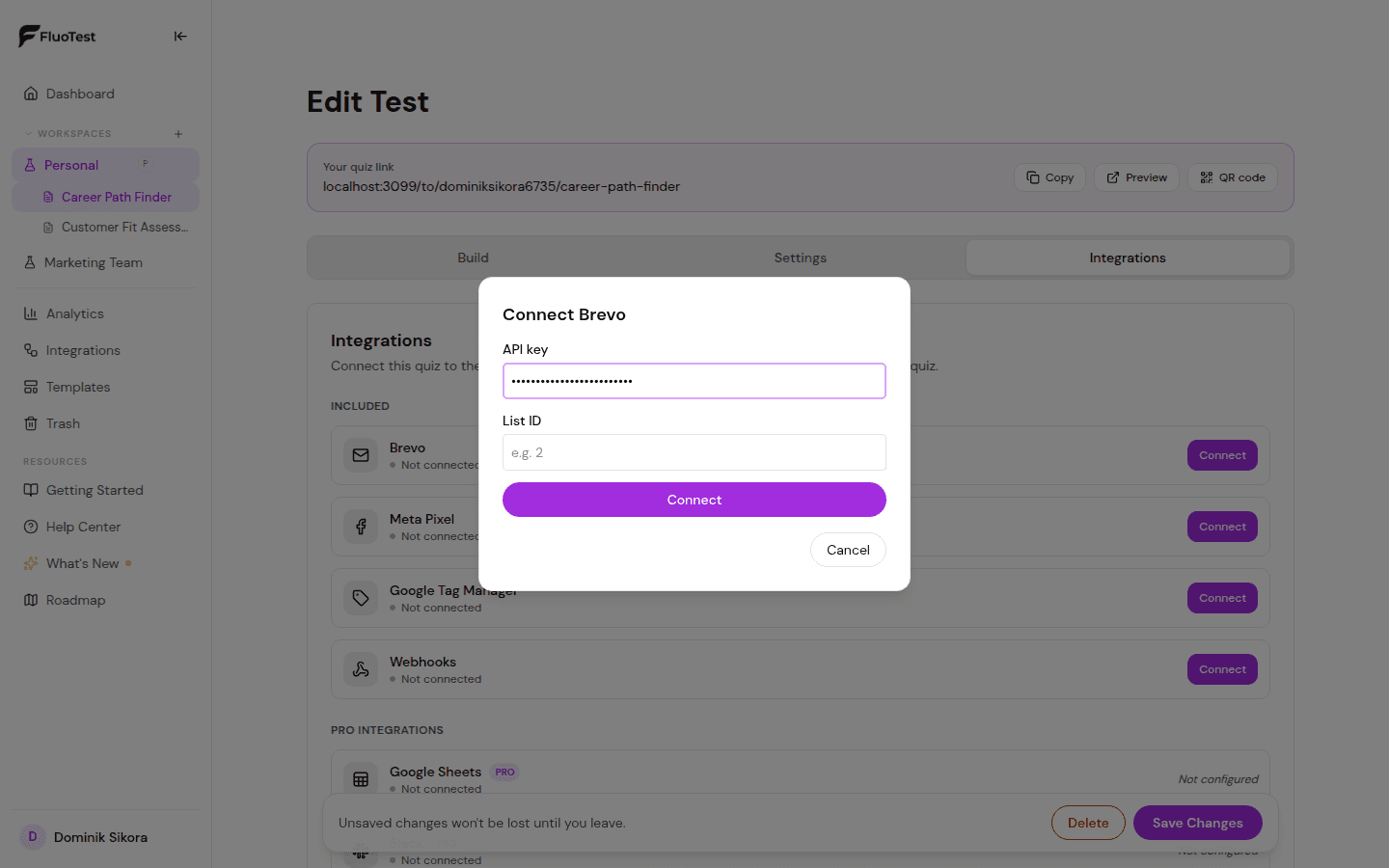
Find the Brevo section and paste your API key.
- 5
Enter the List ID of the Brevo list where you want respondents added. You can find this in Brevo under Contacts → Lists.
- 6
Under "When to fire", leave it as "Every submission" to sync everyone, or set a score threshold so the sync only fires above or below a percentage — for example, only sync high-scoring leads.
- 7
Optional: under "Route by score tier", send each score tier's contacts to a different Brevo list, so a different Brevo automation (a different email sequence) fires per tier instead of everyone landing in the same list.
- 8
Save. From now on, every matching respondent is added to the right Brevo list automatically.
Was this helpful?