Use multiple scores and outcomes
For more advanced quizzes, FluoTest can calculate several independent scores (like Fit and Urgency) and use custom outcomes to decide what to show based on conditions over those scores and the answers. This is fully optional — existing single-score quizzes keep working exactly as before.
- 1
Open your quiz, go to Settings, and expand the "Results & scoring" group.
- 2
Choose the "Multiple scores" starting point and add a category (e.g. Fit, Urgency). Mark one as primary — it drives the headline score.
- 3
In the Build tab, open each question and assign per-category scores: choice options get a score per category, while slider/star/number/yes-no questions get a per-category weight.
- 4
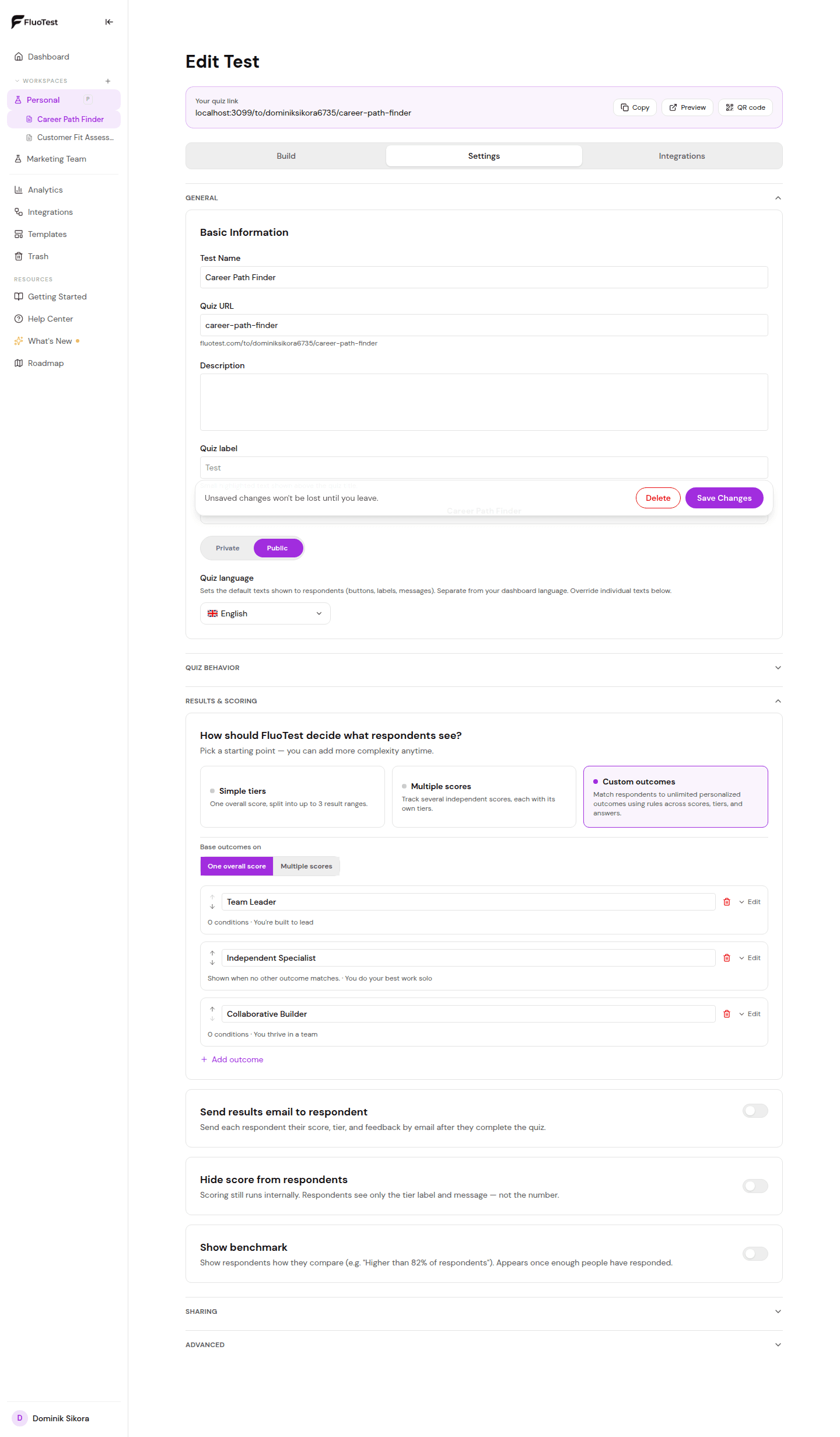
Choose the "Custom outcomes" starting point. Use "Convert my score tiers to outcomes" to start from your existing tiers, or add outcomes from scratch.
- 5
For each outcome, build conditions with Match ALL / Match ANY groups — combine score, tier, and answer rules (e.g. Fit ≥ 70 AND a specific answer). Set one outcome as the default fallback.
- 6
Add a personalized result (title, description, Markdown) and actions: a CTA button, a redirect, or an embedded scheduler like Calendly, Cal.com, or TidyCal. Use the live preview to check it.
- 7
Optionally turn on "Show benchmark" so respondents see how they compare (e.g. "Higher than 82% of respondents"). It appears once enough people have responded.
- 8
Save. Your analytics will then show per-category score distributions and outcome performance with conversion rates.
- 9
Before you publish, click Score map at the top of the Results section. It lists the lowest and highest points each question can add to each score, shows where every possible score lands in your tiers, and warns about gaps, overlapping tiers and outcome rules that can never be true. Pick answers in the "Try an answer" column, or use All lowest and All highest, to see the score, tier and result live.
- 10
After responses come in, open any response and expand "Why this result?" to see each score with its tier and every outcome rule that was checked, with the respondent’s actual answer or score next to what the rule needed. This is available on Pro and Business.
Result bands from the total score
With several scores you can still route on one overall number. In an outcome rule, pick Total score instead of a single score.
- Total score adds up the points of every score and turns them into a whole-number percent, the same way the overall % on the result is calculated.
- Add one outcome per band and put them in order from the top: Total score at least 70%, then Total score at least 40%, and make the outcome for everyone below 40% the default. The first outcome that matches is shown, and each band gets its own headline, message and buttons.
- Each score keeps its own tiers, so someone can land in a high Fit tier and a low Urgency tier within the same band.
- Total score counts every score, including ones hidden from respondents, so on a quiz with a hidden score it can differ from the overall % respondents see. It is free on every plan.
Show scores as a radar chart
Quizzes with three or more scores can draw them as a radar instead of bars. It's free on every plan.
- In Settings, under Results & scoring, set Results chart to Radar. Bars are the default.
- Each score is one axis on a fixed 0-100% scale, with gridlines at 25, 50, 75 and 100, drawn in your quiz's brand colour. Respondents hover over or tap a point to see its value, and the rows under the chart still show each score's percent, tier and message.
- The radar appears on the results screen, in every embed mode, on the shareable results page, in the PDF report, in your new-submission email and in the submission view in your dashboard.
- With fewer than three scores the option is disabled and the quiz shows bars.
- If Hide score from respondents is on, respondents see no chart. You still see the radar in your submissions and notification emails.
Was this helpful?